If you haven’t installed the Chrome Browser, yet, please see
Installing the Chrome Browser.
Run Google Chrome (see Installing the Chrome Browser if you don’t have it installed yet). Then log into your google account (see Creating a google account if you don’t have a google account.
Then browse to:
https://remotedesktop.google.com
Download or view PDF: Chrome Remote Desktop Installation
or continue down the page.

Make sure “Remote Support” is underlined (click on it, if not)

After selecting Remote Support, click on the down arrow. If there is no down arrow, you probably already installed the extension. Skip to here and see if this is what you’re seeing instead.

Now, click on “Add to Chrome”. A confirmation will pop up:

Click “Add extension”. A new little “Chrome Remote Desktop” icon will be put onto the URL line.

Now that you’ve installed the extension, we need to install the software that it uses. If the browser shows the following screen, with a “Ready to Install” heading, you need to install the software, Otherwise, skip to here….

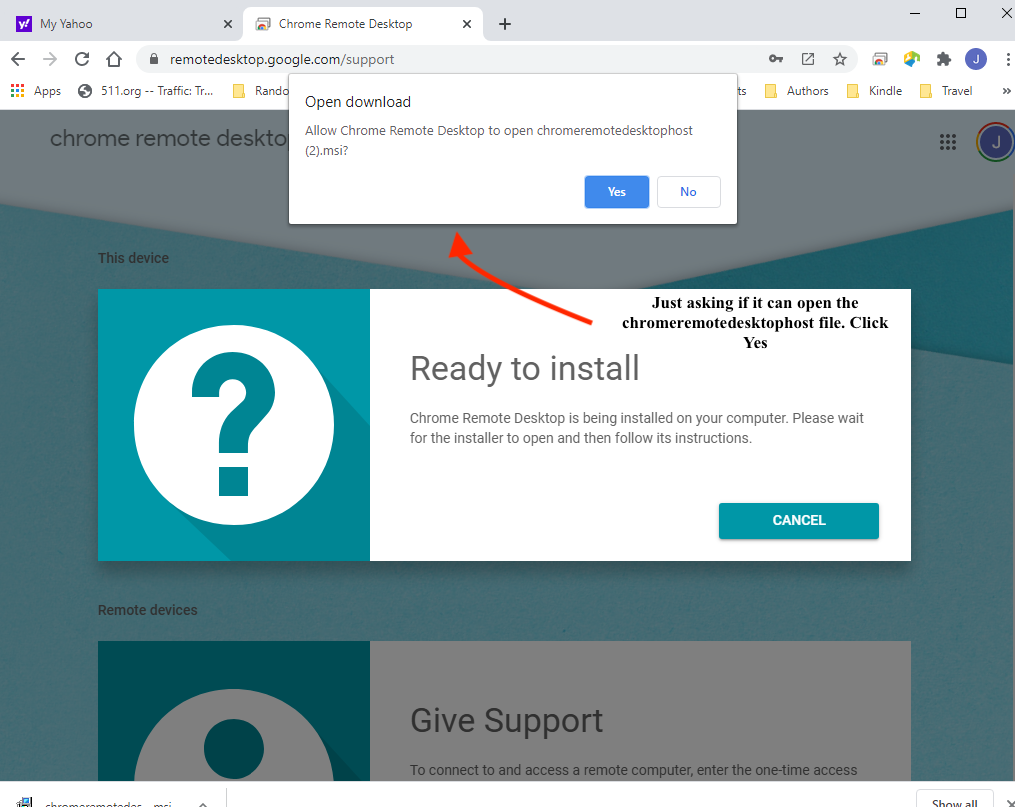 An “Open Download” popup will appear, asking if you should run the installer (the name of the app will be different on PC and Mac). The correct answer is “Yes”.

On Window, you will get this dialog box – you need to click YES. Install software is making a change to your device (computer).
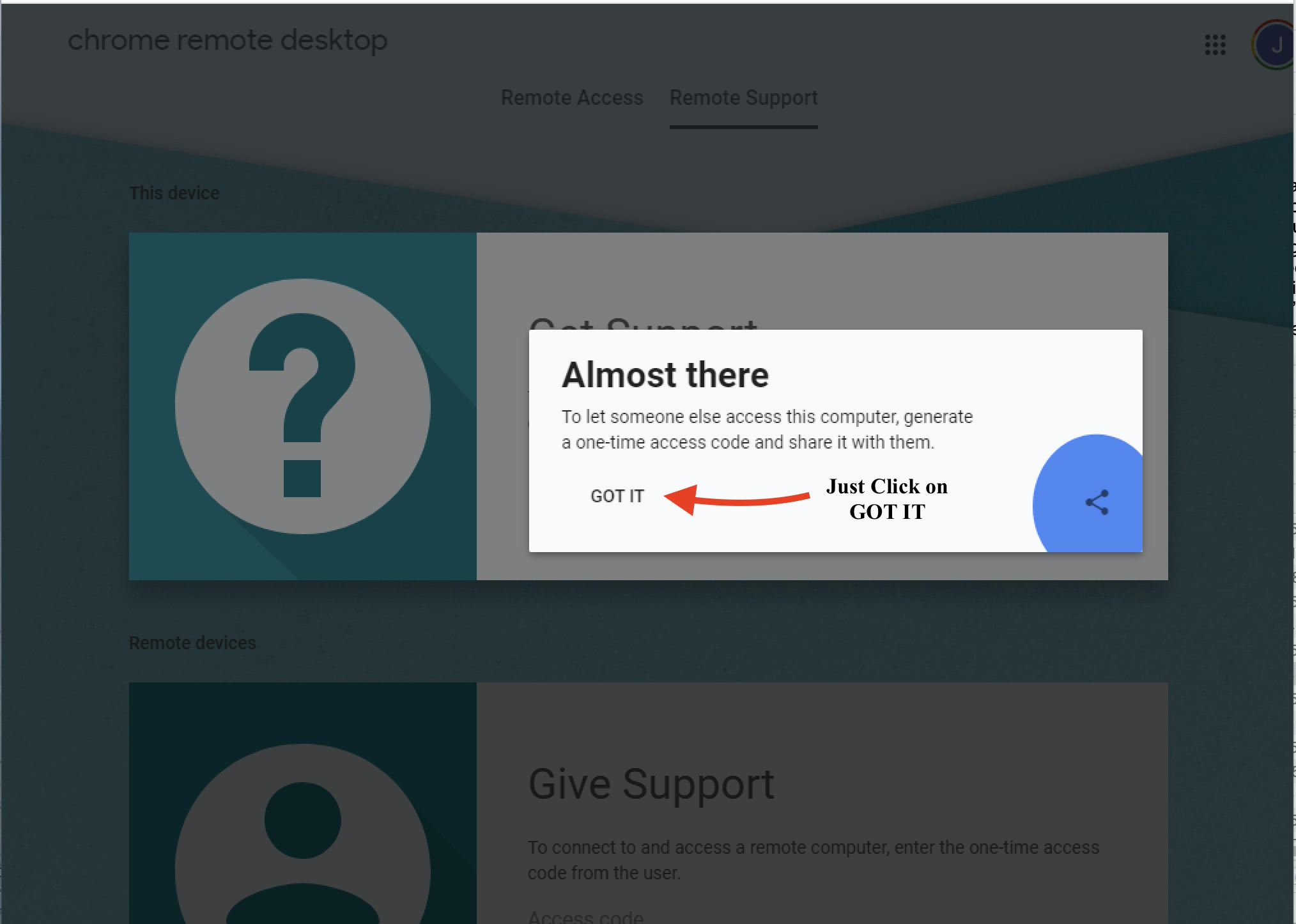
Once it’s done, it will say “Almost there”. Just click “Got It”, and we’re finally ready to go.

Now, click on Generate Code to get a fresh new 12-digit code to give to us so we can connect to your computer and help.

Tell us the 12 digit code. When we try to connect, you’ll see a box like

When we try to connect, you’ll see a box like this. Choose “share”, and we can then control your computer, while you watch.

Remember that little icon that installing the Remote Desktop Extension put onto your URL line? You can click that next time you need Remote Desktop instead of going through all these steps again.